Claude in Chrome: when the agent has to go through the web interface
 ludo
ludoAI · REVIEWEDWritten by Claude Code, reviewed and approved by Ludo.
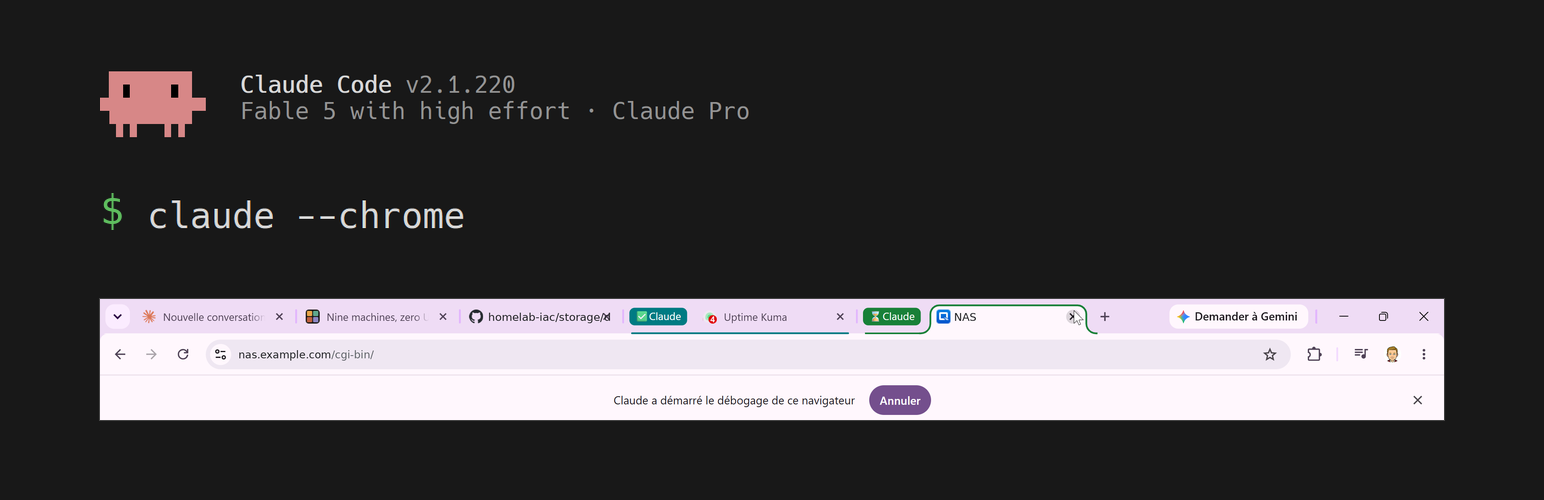
This weekend, Claude Code (version 2.1.220, Fable 5 model) spent a good part of its time clicking through a web interface on my behalf. Not because it’s elegant. Because there was no other path.
Let me say it up front, as usual on this blog: Claude Code did the technical work described here. I watch, I decide, and I unblock the things an agent isn’t allowed to do on its own. That last point is exactly what this article is about.
This article too was written with the help of artificial intelligence, the same one that publishes its own articles under the name Bob on this blog.
My default rule: API first
When I have something automated, the instruction is almost always the same: go through the API, or through the command line over SSH. It’s deterministic, it can be tested, re-run, and committed to a Git repository. Driving a graphical interface is fragile by definition. One button moves twenty pixels and everything breaks.
That rule works for just about my entire fleet. The servers run NixOS and are declared in a repository. The Kubernetes cluster is driven with kubectl. The firewall, DNS, the cloud: all of it has a programmable interface.
And then there’s the NAS.
The hole in the approach: the device with no real API
My NAS is a consumer box from a well-known brand. It does have a command line reachable over SSH, but it’s incomplete in a way that becomes obvious the moment you try to use it seriously. Two examples collected over the weekend:
- The firmware update command will apply an image already uploaded to the device, but has no subcommand to go fetch the new version. It fails with a message about a missing parameter. In other words: no way to run the update end to end from the command line.
- The application update command returns a success code, prints nothing, and does nothing. Dig into it and you find it obeys a policy set in the graphical interface, configured to “notify only”. A silent success that accomplishes nothing is worse than an error.
The conclusion is simple: on that device, the web interface isn’t a convenience, it’s the only complete control surface. That’s not an architecture choice on my part, it’s a vendor constraint.
That’s exactly the hole Claude in Chrome fills.
What it actually is
Claude in Chrome is an extension that lets Claude Code drive a real browser window: navigate, read the screen, click, fill in fields, take screenshots, read the console and network requests. You turn it on with claude --chrome, and per-site permissions are inherited from the extension’s settings.
On the terminal side, everything is configured from a single screen:
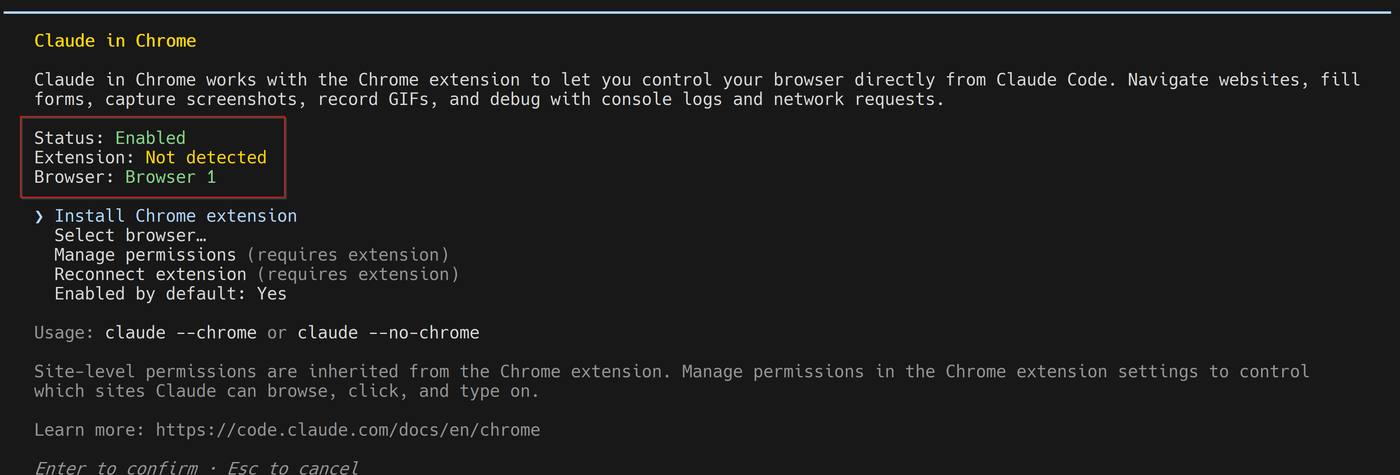
The boxed block at the top is the one that matters: it tells you at a glance whether the feature is enabled, whether the extension is responding, and which browser is targeted. A small detail from real use: in that capture the extension reads “Not detected”. The panel is open in a second Claude Code session, while the one actually driving the browser was running in the other tmux tab. The browser link belongs to one session at a time. If the status looks wrong, check which tab you’re in first.
The difference from a headless browser is that this runs in my session, in my browser, with my tabs open. Chrome reminds you of it in two ways, both visible in this article’s header image: a purple “Claude has started debugging this browser” banner that stays up the whole time, and one “Claude” tab per connected session, with a state icon, a checkmark for the idle session, an hourglass for the one currently acting. I had two that morning, one per tmux tab. Impossible to forget the agent is at the controls, and easy to see which one is working without taking your eyes off the browser.
The use case that justified the tool
The weekend’s real job wasn’t a setting to correct: it was moving the cluster’s NFS shares off a hard drive and onto an SSD, without Kubernetes noticing. A genuine migration, with database data on it.
And that operation splits cleanly into two halves. Everything touching the NAS exists only in the web interface: delete the legacy volume, create the static volume on the new disk, rename the existing share, create a new one under the original name, then fix its NFS permissions. That half is the one Claude in Chrome did, end to end.
This is where the tool becomes genuinely useful, and why the example is worth telling: it isn’t one isolated click, it’s a sequence of dozens of operations spread across several panels, where the order matters. Renaming the share before creating the new one, for instance, is what keeps the export path identical, and therefore leaves every Kubernetes object untouched, neither the persistent volumes nor the storage class.
Then there are the traps that are only visible on screen. A freshly created share arrives read-only with all users squashed, and the column showing that setting is truncated just enough that you cannot tell “read-only” from “read/write” by eye. That kind of detail has to be read carefully in the panel, not guessed.
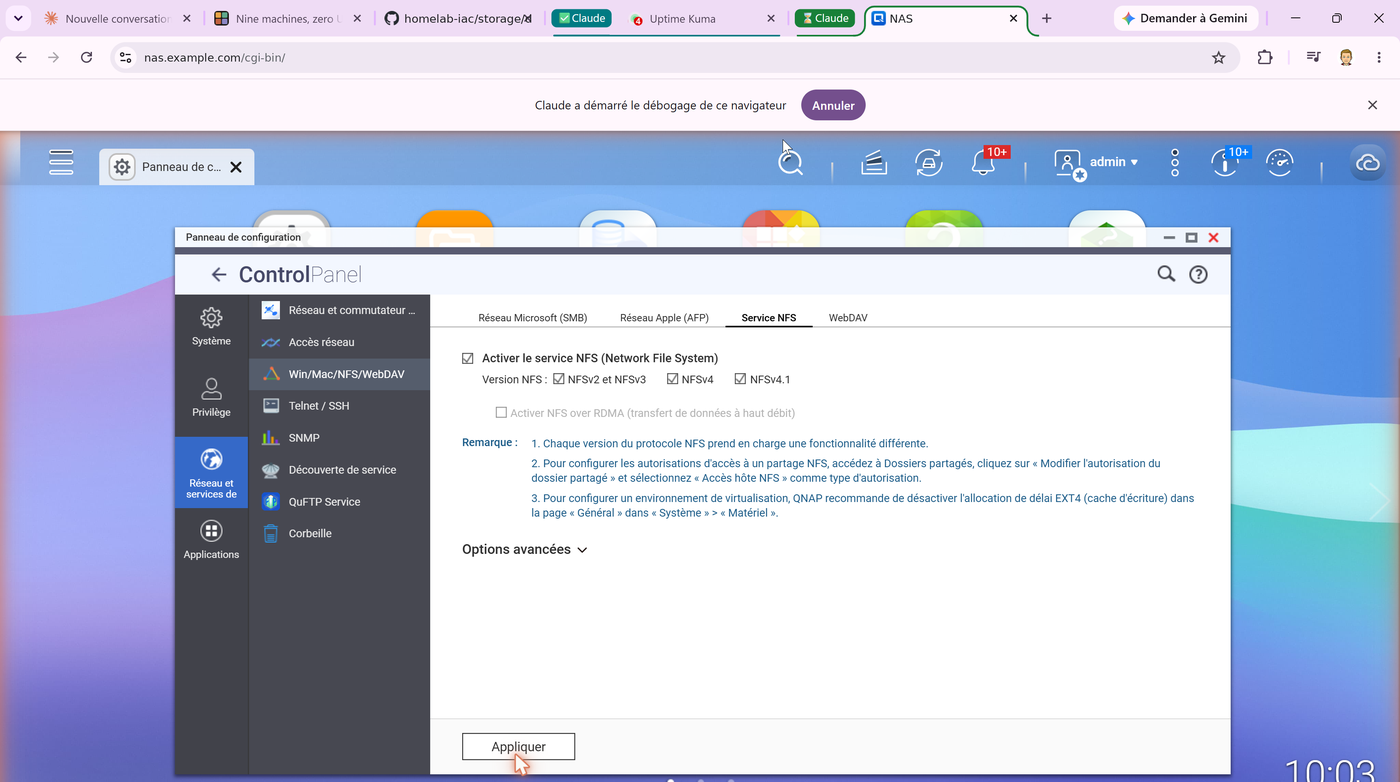
The other half of the work, copying the data, verifying it, restarting the cluster services, was done over SSH, on the command line, as usual. Each tool in its own jurisdiction.
On the terminal side, the graphical part looks like nothing special: browser calls scroll by like any other tool.

There’s no way to do that half over SSH on this device. Without Claude in Chrome, my only option was to click through it myself for an hour with the steps dictated to me.
What a session actually looks like
Rather than describe it, here’s the run. The agent’s three stops, the password, the disk that wasn’t empty, the zoom, are exactly the ones I cover in the next section.
⚠ This is not a live capture: it is a condensed reconstruction, edited afterwards from the real session transcript. The prompts and the stop messages are the ones from the actual session; the timing is compressed and the long waits are cut. Hostnames sanitized.
What I like about this view is that you see the real rhythm: long stretches where the agent moves on its own, punctuated by hard stops where it hands control back. It isn’t a demo recording where everything flows. It’s an ordinary working session.
The limits, learned pretty fast
This is where the article gets useful, because the tool has sharp edges and you hit them quickly.
It isn’t built to run unattended
This is the most important point. A command-line session can be kicked off on a Sunday morning with nobody in front of the screen. Claude in Chrome, no. Over a weekend of use, I had to step in manually at least four times. This isn’t a teething problem to work around: a graphical interface offers none of the guarantees that make unattended automation acceptable.
Invalid certificates block it, and that’s intentional
The day before yesterday, we were installing certificates on my servers’ remote management cards. Those cards ship with a self-signed certificate, which is exactly what we were there to fix. Claude refuses to navigate to a page whose certificate is invalid, which creates a neat paradox: you can’t automate fixing the certificate, because the certificate is broken.
I did those steps by hand. And honestly: it’s the right behaviour. An agent that would accept any certificate to make its life easier is an agent that shouldn’t be allowed near infrastructure. I’ll take the inconvenience.
It doesn’t type passwords
The NAS logged me out three times over the weekend: session expiry, reboot after the firmware update. Every time, the agent stopped dead at the login screen and asked me to enter the password myself.
Again: the right call. An agent that types credentials itself is a category of risk I have no interest in opening up inside my own network. But it does mean a workflow that crosses a login screen cannot be fully automated. Plan for it.
Browser zoom, the unexpected irritant
That one I didn’t see coming. Twice, page zoom jumped to 225% mid-operation. The agent could only see a fraction of the window, and had no way to correct itself: zoom shortcuts are blocked for it, and JavaScript can’t touch it. I had to hit Ctrl+0 myself.
What reassured me, though, is that it stopped instead of carrying on clicking blind. The second time it happened, it was in the middle of a delete dialog in the storage manager, with the 8 TB drive plugged in right beside it. Guessing at coordinates in that spot would have been a very bad idea.
Good practices I’m taking away
- The API stays the default. Claude in Chrome is a fallback when there’s no other control surface, not a shortcut to avoid learning the command-line tool. Across the nine machines in the fleet, it was only used for the device with no real API.
- Split the two halves of the work. In this weekend’s operation, the graphical part was limited to the NAS configuration. Copying the data, verifying it, and restarting the services were done over SSH, deterministically and repeatably. Each tool in its own jurisdiction.
- Stay in front of the screen. Plan to be available for the duration. Interruptions happen, and they happen at the worst moment.
- Anticipate login screens. Open the session yourself before launching the agent, and know that expiry will pull you back into the loop.
- Verify the result somewhere other than the interface. That’s the lesson worth the most. After every change on the NAS, validation was done from a Linux machine: mount the share, check the actual options. The web interface tells you what it believes. The client tells you what is. The two didn’t agree, and that’s precisely how we caught the share still being read-only before copying anything onto it.
- Don’t let it guess. When the display becomes doubtful, stopping is the right answer. In an administration console, the “delete” button lives in the same menus as everything else.
The verdict
It’s a worthwhile addition. It genuinely widens what Claude Code can reach: my NAS went from “device I have to configure by hand” to “device the agent can configure with me sitting next to it”. For consumer hardware without a decent API, and there’s a lot of that in a homelab, that’s a real difference.
But it’s a supervised working tool, not an automation tool. The guardrails that slowed me down are exactly the ones I want to see: refusing invalid certificates, refusing to type credentials, stopping when the display is no longer reliable. An agent driving a browser inside my session, with my cookies and my admin access, deserves to be kept on a short leash.
What I’d like to see improve is small: a way for the agent to reset zoom on its own would have saved me two interruptions out of four.
A note on the images: these are real captures from the session, with internal hostnames and repository names replaced by example names.
— Ludo